
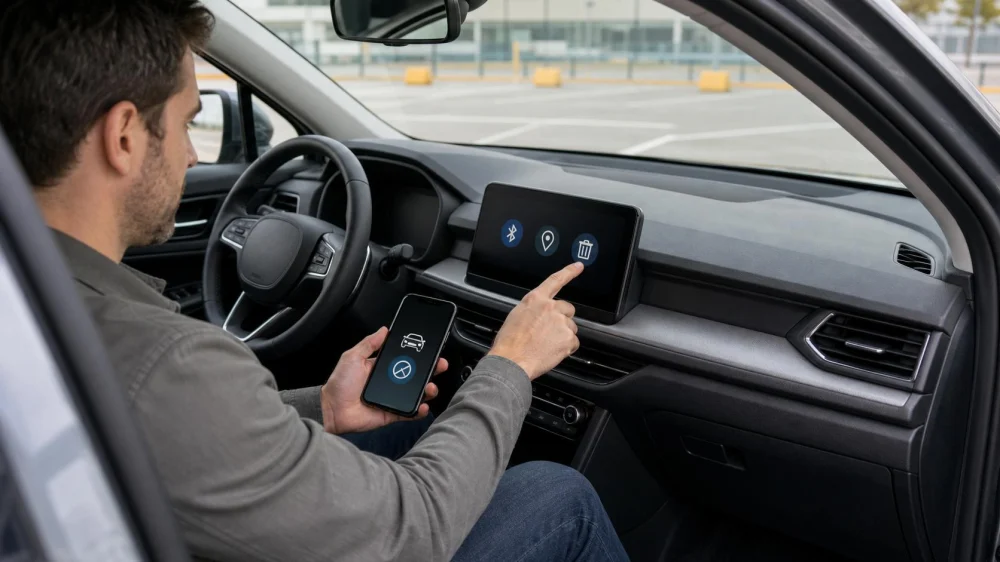
Rental Car Privacy: Delete Phones, Routes, and Accounts
On this page
Quick answer
Before returning a rental car, remove every paired phone and user profile, clear saved destinations and recent navigation history, sign out of media or charging accounts, and delete imported contacts, messages, and call logs where the system allows. Then remove the car from your phone's Bluetooth and connected-car settings. Use the vehicle manual or rental company's instructions, and do not perform a full factory reset unless authorized.
This guide is for U.S. rental vehicles with Bluetooth, infotainment, navigation, connected apps, or driver profiles. Menu names and data behavior vary by vehicle, software version, phone, rental app, and account. Clearing the dashboard may not erase data already sent to a phone app, cloud service, rental company, or vehicle manufacturer.
What data may remain
A connected rental car may store or display more than a device name. Depending on permissions and features, it may retain:
- paired phone names and Bluetooth identifiers;
- imported contacts, call history, message previews, or favorites;
- recent destinations, saved addresses, search history, and route traces;
- home, work, hotel, client, or family locations;
- driver profiles, seat and mirror preferences, and voice settings;
- media-app login sessions, playlists, or account names;
- garage-door or gate codes when compatible controls were programmed;
- charging-network or parking accounts;
- wireless hotspot credentials; and
- data associated with a connected vehicle or rental-company app.
The U.S. Federal Trade Commission warns that connected rental cars may keep locations, phone numbers, contacts, and call or message logs after return. The exact data depends on what you allowed the system to access.
Before you connect a phone or account
- Use the least access needed. For audio, a cable or Bluetooth connection may not need full contact and message synchronization.
- Read permission prompts. Decline contact, message, calendar, and notification access when they are unnecessary.
- Prefer guest mode. If the vehicle offers a temporary profile, confirm what it stores and how it is deleted.
- Avoid saving home or work. Navigate to a nearby public point when a precise private address is not necessary.
- Do not save payment methods casually. Use phone-based or one-time payment options when available and appropriate.
- Keep a connection list. Note each phone, app, media account, toll account, charging account, parking account, and profile used during the rental.
Phone-projection systems may show apps from the phone without copying all data into the car, but do not assume nothing is stored. Review both the phone and vehicle when the rental ends.
Privacy checklist before return
Park safely, keep the vehicle on as the manual requires for settings, and allow time before the return deadline:
- Remove paired devices. Open Bluetooth or phone settings in the car and delete every device added by your group.
- Delete driver profiles. Remove guest or named profiles you created without deleting fleet or owner profiles.
- Clear navigation data. Delete recent destinations, favorites, saved places, routes, and search history.
- Clear communication data. Remove imported contacts, favorites, call logs, and messages if they remain after unpairing.
- Sign out of apps. Log out of music, podcast, video, parking, charging, or other accounts used in the vehicle.
- Remove Wi-Fi details. Forget a personal hotspot and delete its saved password from the car.
- Remove access codes. Clear garage, gate, or remote-control programming using the correct vehicle procedure.
- Disconnect cables and media. Remove phones, storage devices, adapters, and charging accessories.
- Check the phone. Forget the rental car in Bluetooth, phone projection, digital-key, and connected-car app settings.
- Check personal items. Look in every seat pocket, console, glove box, trunk, cargo area, and charging port.
If the system will not let you remove data, photograph the non-sensitive menu state, contact the rental desk before handing over the keys, and ask for documented assistance. Do not expose private contacts or messages in a photo sent to support.
Verify removal without changing the car
Return to the device list and confirm your phone name is absent. Open recent destinations and verify that personal locations are gone. Check the user-profile list and each app you signed into. Turn Bluetooth off on your phone briefly and confirm the vehicle does not reconnect.
Do not use “delete all,” “restore defaults,” dealer mode, diagnostic menus, or a full factory reset unless the vehicle manual and rental company authorize it. A reset may erase fleet configuration, paired rental equipment, language, maintenance data, or settings needed for the next inspection.
Do not delete devices or profiles that were present before your rental. At pickup, you can photograph the existing device list without capturing names unnecessarily and ask the agent whether the system should have been cleared.
Rental apps, photos, and receipts
After return, close the trip in the rental app, remove any digital key when the trip is complete, and review location, Bluetooth, nearby-device, contact, photo, and notification permissions. Do not uninstall an app before saving the receipt and return confirmation you may need.
Review trip photos before sharing them. Images of the dashboard, windshield, or return bay may reveal map locations, phone notifications, vehicle identification numbers, plates, contracts, QR codes, account names, or payment information. Store evidence securely and redact sensitive details from support messages.
Check email and account activity for unexpected login, charging, parking, toll, or rental notices. Use the official app or website rather than links in an unexpected text message.
Limitations and security notes
Deleting visible dashboard entries may not erase telemetry, diagnostic data, remote-app records, rental records, toll transactions, or data already synchronized with a third party. Review the relevant privacy notices and use provider account controls for cloud data.
If you forgot to clear the car, contact the exact return location promptly and ask whether staff can remove the device and profile without viewing content. Change passwords and revoke sessions for any account that remained signed in. Remove the vehicle from digital-key or connected-car access immediately.
If you believe sensitive information was exposed, preserve a timeline and contact the account provider or rental company through verified support. For suspected identity theft, use official federal resources rather than paying a company that contacted you unexpectedly.
Sources and evidence notes
The Federal Trade Commission rental-car guidance notes that connected rental cars can retain personal information such as locations, phone numbers, contacts, and call or message logs and recommends using the manual or rental company for deletion help. This article expands that warning into a before-connection and before-return checklist. Vehicle-specific instructions and privacy notices remain authoritative.
Frequently asked questions
Is unpairing my phone enough?
Not always. Contacts, recent destinations, a driver profile, app session, or garage code may remain separately. Review each category and then forget the car on the phone.
Does using a USB cable prevent data storage?
Not necessarily. A cable can enable phone projection, media access, or permission prompts. Use the minimum permissions and check the vehicle afterward.
Should I factory-reset the infotainment system?
Only when the rental company and vehicle instructions authorize it. A full reset can erase settings or data that do not belong to you. Delete your own profiles, devices, and content instead.
What if the vehicle already shows another renter's phone?
Do not open their contacts, messages, or routes. Inform the rental company and ask staff to clear the system. Consider a different vehicle if the privacy process is not handled appropriately.
Can the rental company still have location data after I clear the screen?
Possibly. Screen deletion and provider-held data are different. Review the rental and vehicle privacy notices and use account privacy controls or support channels for questions about retained data.
Next steps
Before the trip, decide which connections you truly need and decline unnecessary permissions. Keep a list of every device, profile, and account used. Schedule ten minutes before return to remove phones, routes, contacts, profiles, app sessions, Wi-Fi, and access codes, then check the phone side. Save the receipt and return evidence securely, and revoke any session you could not remove from the vehicle.






 SIXT Rent a Car Miami Coral Gables Miracle Mkt4.0 (605 reviews)
 CAL MOBILITY0.0 (0 reviews)
 Enterprise Rent-A-Car4.0 (620 reviews)
 VELOCITY Luxury and Classic Rentals5.0 (4 reviews)
 Avis Car Rental3.0 (141 reviews)
 Hertz Car Rental2.0 (13 reviews)
 Car Rental vs. Public Transportation: Which Is More Cost-Effective?
 Is Turo Car Rental Legit? Everything You Need to Know
 Car Rental for Road Trips: How to Choose the Best Route and Vehicle
 Does Mastercard Provide Car Rental Insurance?
 How Much is Thrifty Car Rental Deposit? A Comprehensive Guide
 Renting a Car with a Debit Card: Everything You Need to Know