
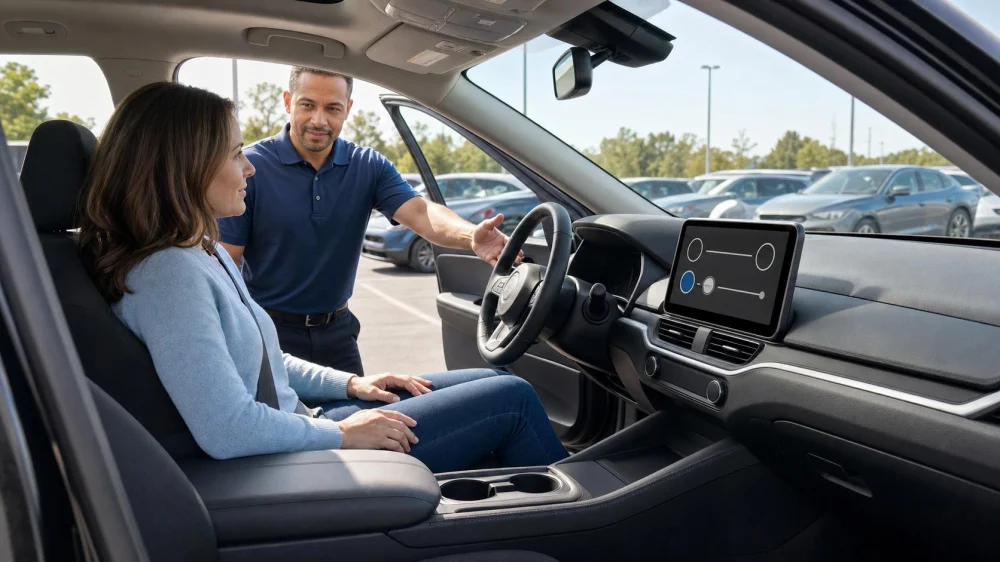
How to Check Driver-Assist Settings in a Rental Car
On this page
Quick answer
Before moving a rental car, identify its driver-assist features, read the relevant quick guidance, and check dashboard settings while parked. Adjust mirrors and seating first, then learn how lane, collision, blind-spot, parking, and cruise alerts appear. Keep full control and attention; unfamiliar automation is not a reason to experiment in traffic. Report warning lights or unexpected behavior to the rental company.
This guide is for U.S. rental-car drivers. Features, names, controls, and limitations vary by model and software version. The vehicle manual and rental company instructions take priority.
Identify installed features
Do not infer capability from a button, sensor, or model name. Trim levels differ, and a vehicle may have a warning feature without steering or braking assistance.
Look for the owner's manual, in-car help, or rental quick guide. Ask staff to identify installed features and demonstrate essential controls while the car is stationary. Common categories include forward-collision warning, automatic emergency braking, blind-spot warning, lane alerts, adaptive cruise control, parking sensors, and cameras.
Record the vehicle's fuel or charging instructions separately; driver-assist screens may share menus with other settings.
Check settings while parked
- Adjust the seat, steering wheel, head restraint, and mirrors.
- Fasten the seat belt and confirm normal dashboard startup checks.
- Locate feature menus without changing unfamiliar advanced settings.
- Identify indicator icons and whether an alert is visual, audible, or tactile.
- Set a normal display brightness and volume that keep safety alerts noticeable.
- Locate cruise-control cancel and the main driver-assist controls.
- Check that cameras and sensors are not visibly blocked by dirt, snow, luggage, or accessories.
Do not enter accounts, connect personal data, or change system calibration. Avoid menu exploration once the vehicle is moving.
Learn alerts and limits
Read what each feature does, when it operates, and when it may be unavailable. Rain, snow, glare, darkness, road markings, construction, curves, sensor blockage, and trailers can affect performance.
A blind-spot warning does not replace a mirror and shoulder check. A parking camera does not show every obstacle. Lane assistance does not make hands-off driving safe. Adaptive cruise still requires supervision and may not handle every stopped vehicle or road condition.
Know the difference between a temporary unavailable message and a fault warning. If uncertain, stop safely and contact the rental company rather than clearing messages at random.
Make a conservative first drive
Choose a low-complexity route away from dense traffic. Learn basic steering, braking, visibility, turn signals, and wipers before using optional cruise or parking assistance.
Keep extra space and drive manually. If an alert occurs, respond to the road—not the screen. Pull over safely before reading a message or changing a setting.
Do not test automatic braking, steering intervention, or parking features by creating a hazard. A rental is not a safe environment for feature experiments.
Handle faults or confusion
If a safety warning stays on, a camera view is unavailable, controls behave unexpectedly, or the system intervenes in a way you do not understand, move to a safe location. Photograph the warning while parked, note the conditions, and call the rental company's roadside or branch contact.
Do not cover sensors, disconnect the battery, erase fault codes, update software, or attempt repair. Ask whether to continue, exchange the vehicle, or wait for service.
Driver-assist pickup checklist
- Identify actual installed features from reliable vehicle information.
- Adjust seating and mirrors before system settings.
- Learn alert types and the cruise cancel control.
- Confirm cameras and sensors are visibly unobstructed.
- Review major limitations for weather and road markings.
- Keep full attention and control during a simple first drive.
- Stop safely before using menus.
- Report persistent warnings or unexpected behavior.
Limitations and important notes
- Feature availability may change with speed, seat-belt use, weather, road design, or sensor condition.
- Do not assume the previous renter's settings suit you.
- Phone integration and driver profiles may retain personal data; use privacy-conscious guest options and remove your data before return.
- Hands-free claims, where offered, have specific road and supervision conditions.
- Traffic law and safe operation remain the driver's responsibility.
Frequently asked questions
Should I turn off unfamiliar driver assistance?
Do not change it reflexively. Read the vehicle guidance and ask the rental company. Some features reset at startup or are integral safety systems.
Can I rely on the parking camera?
No. Check mirrors, surroundings, and blind areas directly. Cameras can distort distance or miss low, side, dirty, or moving obstacles.
What if the steering wheel vibrates?
It may be an alert or another issue. Maintain control, stop safely, consult the manual, and contact the rental company if the meaning is unclear.
Is adaptive cruise the same as self-driving?
No. It requires attentive supervision and has limits. Use it only after understanding the specific vehicle and conditions.
Should I clean a blocked sensor?
Follow rental and vehicle guidance. Do not use harsh products or tools. Ask the company when blockage or damage is uncertain.
Sources and evidence notes
This guide reflects common driver-assistance safety principles: identify the actual system, understand limits, configure while stationary, maintain supervision, and report faults. The vehicle manufacturer, rental company, and current traffic authorities provide model- and location-specific instructions.
Set up before moving
With the car parked, find the quick guide and identify the three alerts most likely to appear. Adjust your driving position, locate cruise cancel, and ask staff about any unexplained icon. Start with a simple manual drive and leave optional feature use until the car's basic controls feel familiar.






 Hertz Car Rental - Alpharetta - Atlanta Marriott2.0 (166 reviews)
 Alamo Rent A Car2.0 (18 reviews)
 Enterprise Rent-A-Car4.0 (317 reviews)
 5ive Rent a car4.0 (5 reviews)
 Rollin Sixty Transportation Llc0.0 (0 reviews)
 The Classic Lifestyle4.0 (116 reviews)
 How to Extend Your Car Rental Reservation Without Extra Charges
 How to Start a Exotic Car Rental Business in the U.S. in 2025
 Does AAA Have Car Rental Discounts? Save on Rentals Today with AAA Benefits
 How to Avoid Cleaning Fees on Rental Cars: Smart Tips That Work
 Is Payless Car Rental Good? What You Need to Know Before Booking
 How to Contact Payless Car Rental: A Simple Guide